
This guide applies to both Lite and Full versions of the Apex Legends product.
Common Issues
Error 0x01
Error 0x01
Solutions:
- Make sure that everything protection-related is disabled on your PC (anti-virus, firewall, smart screen, etc.), restart PC and try again
- Delete third-party anti-virus or FACEIT anti-cheat
- Try to install all visual c++ and restart PC
Error 0x03
Error 0x03
Solutions: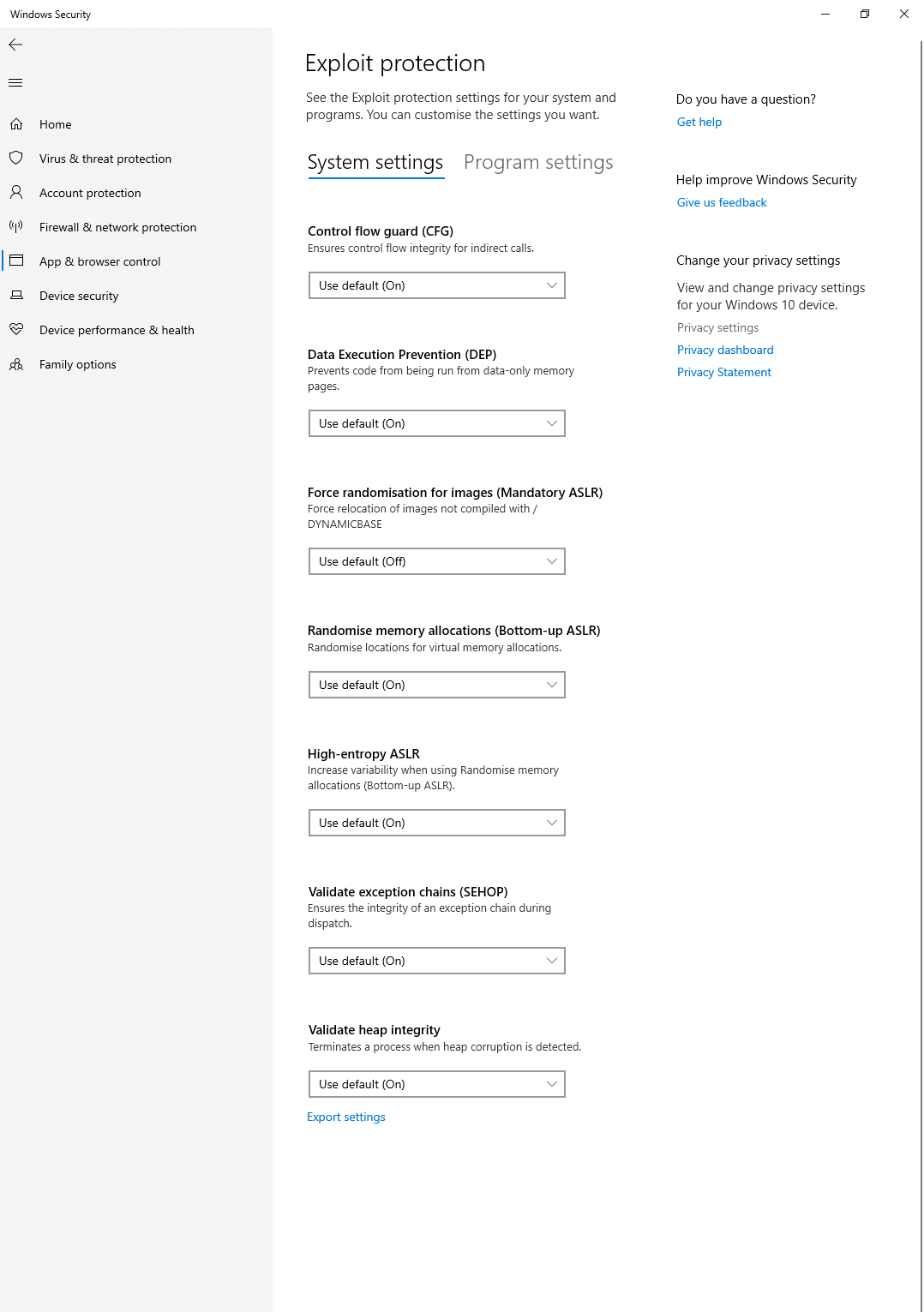
- Try to install all visual c++ and restart PC
- Try to delete Windows updates and Windows security updates, then restart PC and try again
- Make sure that Exploit protection settings are default, don’t change them, should be same as on screenshot below
Error 0x05
Error 0x05
Solution:Try to restart your PC.
Detected unwanted process
Detected unwanted process
Solution:Ensure that Game Launcher (EA/STEAM/ORIGIN/RIOT or any other) and Game are completely closed before you launch the loader.
BSOD (Blue Screen of Death)
BSOD (Blue Screen of Death)
This is caused by missing DirectX Web Kit.After installing, restart your PC and try again.
Download DirectX Web Kit
Install the DirectX Web Kit to prevent BSOD errors.
Loader Crashes or Visual C++ Errors
Loader Crashes or Visual C++ Errors
Install all Visual C++ Redistributable versions and restart your PC.After installing, restart your PC and try again.
Visual C++ All-in-One Package
Download and install all Visual C++ Redistributable versions at once.
Lite vs Full version issues
Lite vs Full version issues
Lite version not working:
- Ensure you’re using the correct loader for the Lite version
- Some features are intentionally disabled in Lite
- Verify your subscription is active
- Re-download the loader from your account
Quick Troubleshooting Checklist
Before contacting support, verify all of these items:Still Having Issues?
Contact Support
If you’ve followed all troubleshooting steps and still experience problems, open a support ticket on our Discord server with your diagnostic screenshot.