
This guide applies to both Lite and Full versions of the Apex Legends product.
About Our Loader
When you follow the MEGA link, you receive a unique build of our loader — each user gets their own version. On our server, new builds are generated every minute and uploaded to MEGA.After a successful injection, the loader completely deletes itself from your computer without leaving any trace.Every build is entirely unique, and we generate:
- Over 1,000 different builds daily
- Over 30,000 builds monthly
Launch Sequence
1
Verify Prerequisites
Confirm the following before continuing:
- Windows Defender is disabled
- Game and launcher are completely closed
- No antivirus software is active
- DirectX Web Kit is installed
2
Install and Run the Loader
Download Loader
Download the latest Apex Legends loader from our secure download page.
- Extract the loader to a folder
- Right-click on the loader executable
- Select “Run as Administrator”
3
Run Loader Again After Restart
After your PC restarts:
- Run the loader again as Administrator
- Enter your license key when prompted
- Wait for key verification
The loader will confirm your key is valid.
4
Choose Product and Run
- Select Apex Legends from the product list
- Choose your version (Lite or Full)
- Click “Run” in the loader
- Wait for the loader to indicate it’s ready
The loader will tell you when it’s safe to launch the game.
5
Run Game
Only launch the game when the loader tells you to:
- Launch Apex Legends through Steam, Origin, or EA App
- Wait for the game to fully load to the main lobby
- The product should now be active
Enjoy! The product will inject automatically.
Cheat Recommendations
Aimbot Method — Linear vs Curve
Linear A standard aimbot. Moves the crosshair in a straight line to the target from any angle. Predictable and fast. Curve Mimics human mouse movement. The crosshair follows a curved path instead of a straight line. Looks more natural and helps keep a “legit” playstyle. Recommended! with Smooth higher than 65.Aimbot Mode — Legit vs Rage
Legit Subtle aiming. Keeps movements and corrections small to appear human. Lower chance of looking automated. Rage Aggressive aiming. Aims much faster (roughly 3×) and “locks” onto targets more strongly than Legit. Use only when you accept higher detection/visibility risk.RCS — Recoil Control System
RCS does not remove recoil completely. It helps control recoil while firing so your shots stay on target. RCS smooths recoil corrections to look natural and reduce detection risk.Quick Tuning Tips
- Start with Curve + Smooth 65–80 for a natural feel
- Use Legit mode
- Enable RCS and tune intensity so vertical recoil is reduced but small human-like corrections remain
Tap Strafe
When you hold the Tap Strafe key, you can rotate your camera in any direction, and your character will instantly follow and turn the same way. Without it, only your camera turns, while your character keeps moving straight. This feature lets you:- Make sharp mid-air turns
- Dodge enemies more easily
- Gain precise control over your movement
Super Glide
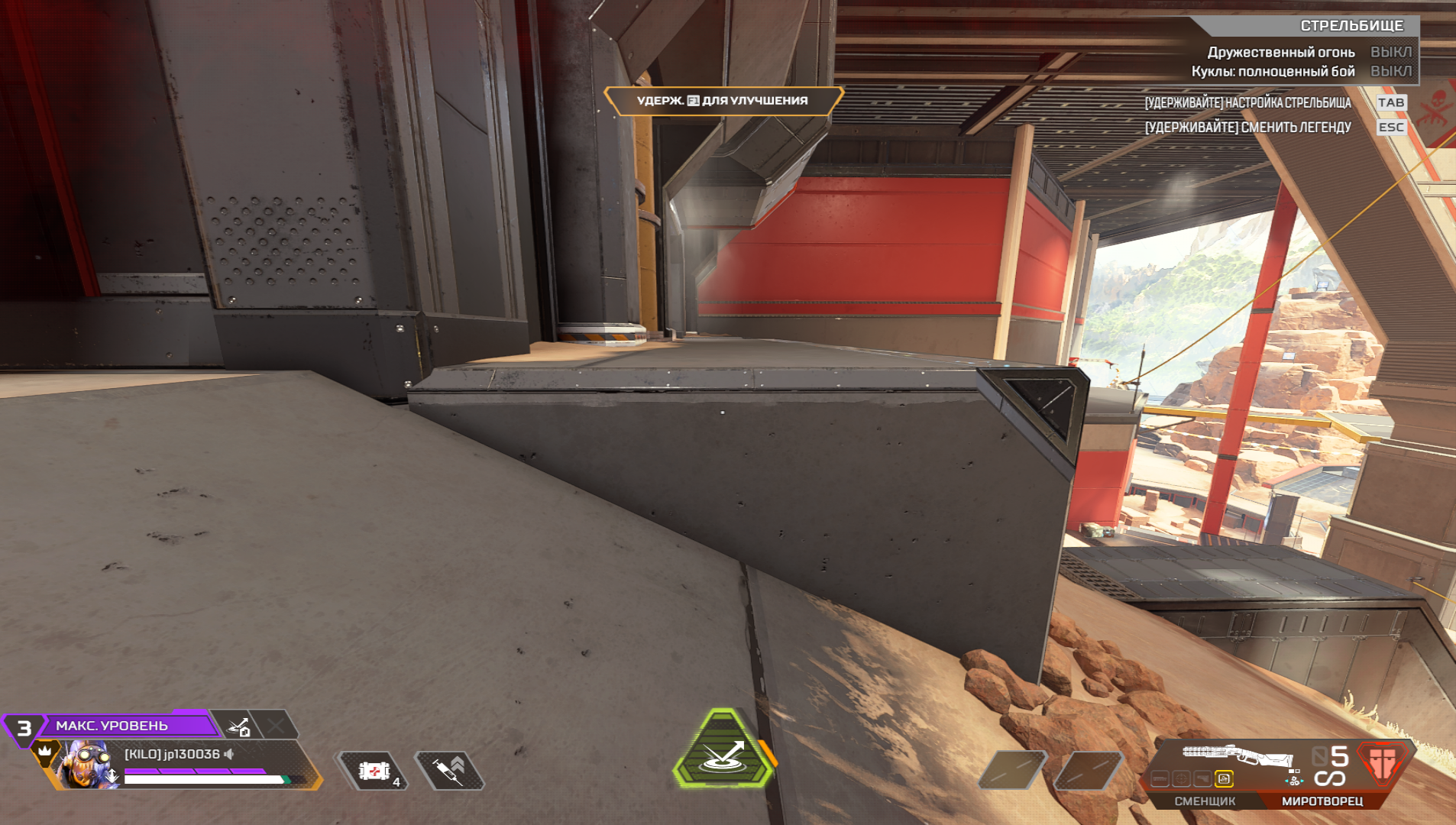
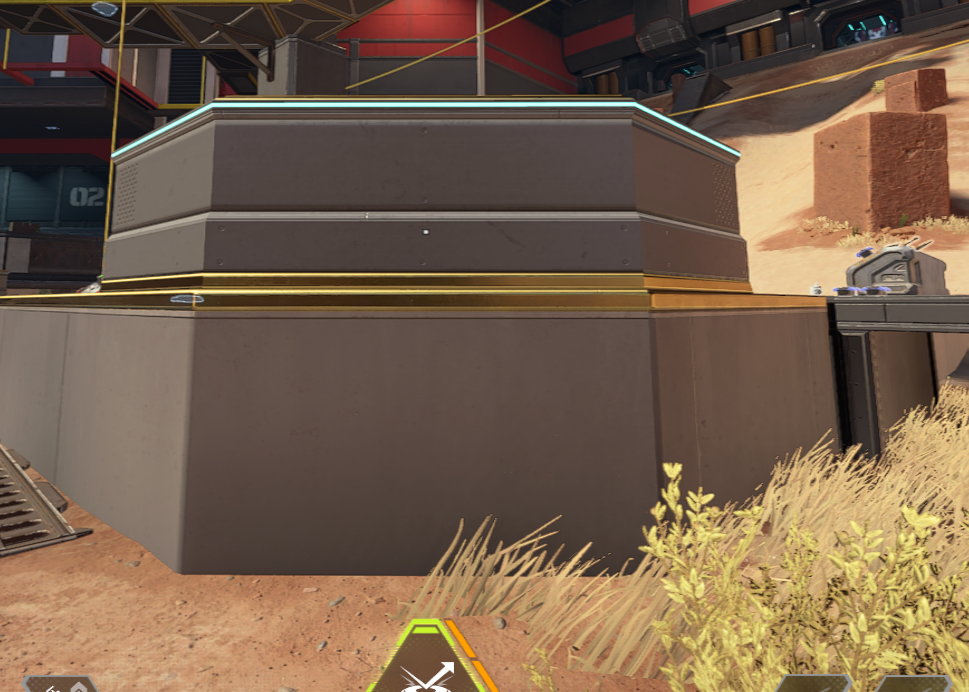
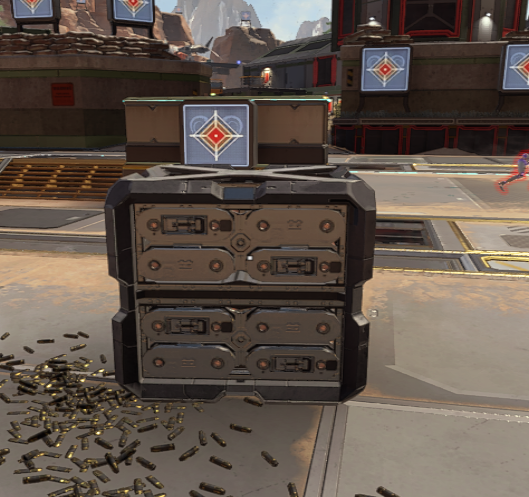
Super Glide works best on flat and clean surfaces. If the object is uneven or complex, the glide may trigger inconsistently or fail. Tips for consistent execution:- Practice on simple, flat objects
- Learn which surfaces allow reliable Super Glides
- With correct timing and good surfaces, you can hit it 100% of the time

Important Reminders
Fresh Builds
Always download a fresh loader build for each session instead of reusing old ones.
PC Restart
The first run will restart your PC. This is normal behavior.
Version-Specific Notes
- Lite Version
- Full Version
The Lite version activates basic features only. Some advanced options may be grayed out in the menu.
You’re all set! If you encounter any issues, check the Error Fix guide.